
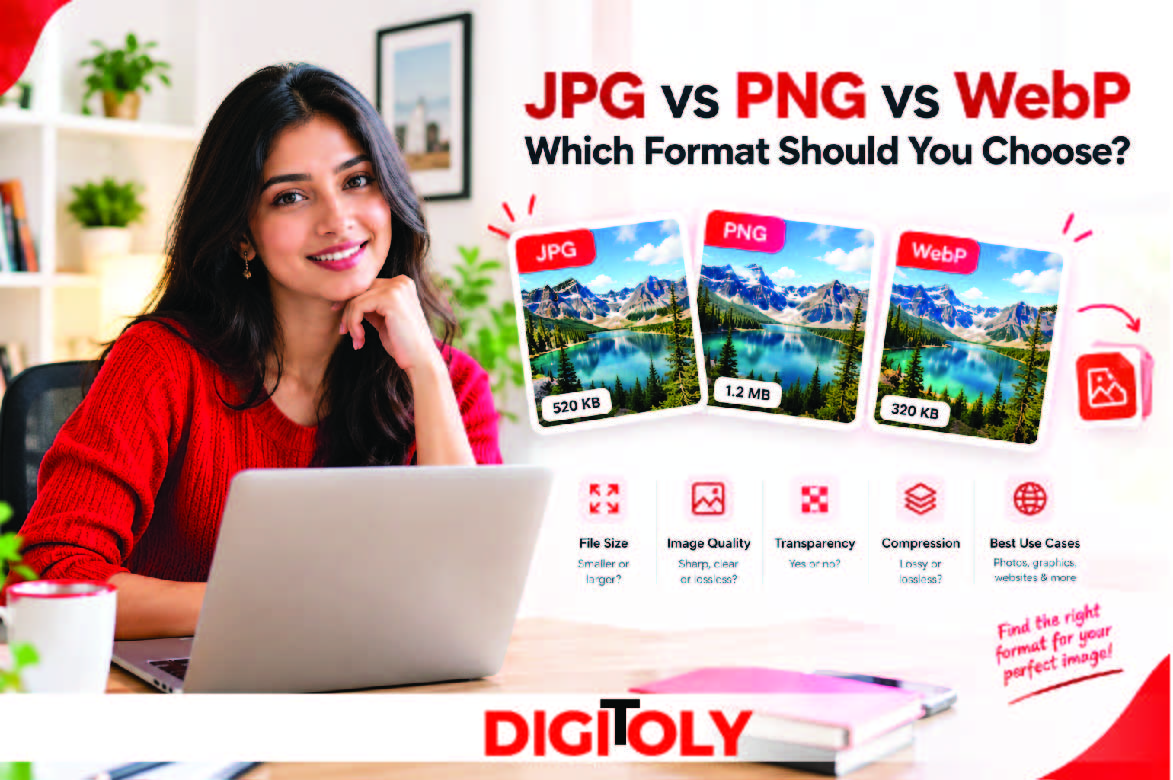
Choosing the right image format can make a noticeable difference to image quality, file size, website performance, and compatibility. Whether you are uploading photographs, designing a logo, publishing a blog post, or optimizing an online store, the format you choose affects how your images look and how efficiently they can be delivered.
Three of the most common image formats are JPG, PNG, and WebP. Although they can all display images on websites, they use different compression techniques and offer different advantages.
- JPG is a popular choice for photographs and images that need broad compatibility.
- PNG is ideal for graphics that need transparency or precise pixel preservation.
- WebP supports both lossy and lossless compression, as well as transparency, making it a versatile option for websites.
So, which format should you choose?
For many website images, WebP is an excellent starting point. JPG remains useful for photographs, uploads, and compatibility, while PNG is valuable for transparent graphics and images that need lossless quality.
In this guide, we will compare JPG vs PNG vs WebP, explain their differences, explore real-world use cases, and show you how to choose the right format for your needs.
If you want to convert an image or explore image optimization tools, visit the Digitoly Image Converter.
JPG vs PNG vs WebP: Quick Comparison
Here is a quick overview of the three formats.
| Feature | JPG/JPEG | PNG | WebP |
| Compression | Lossy | Lossless | Lossy or lossless |
| Transparency | No | Yes | Yes |
| Typical file size | Often small for photographs | Often larger for photographs | Often smaller for comparable web images |
| Best for | Photographs and general sharing | Logos, screenshots, transparent graphics | Website images, photos, and many graphics |
| Sharp text and edges | May show compression artifacts | Preserves pixel detail | Depends on lossy or lossless settings |
| Animation | No | Possible with APNG, a related PNG-based format | Yes |
| Modern browser support | Broad | Broad | Broad across modern browsers |
| Common extension | .jpg, .jpeg | .png | .webp |
The most important distinction is compression. JPG uses lossy compression, PNG uses lossless compression, and WebP supports both approaches. WebP also supports transparency in both lossy and lossless modes. <sup>1</sup>
No format wins in every situation. The best choice depends on the type of image, the desired quality, the required file size, and where the image will be used.
What is JPG?
JPG, also known as JPEG, stands for Joint Photographic Experts Group. It is a widely used raster image format known for reducing the file size of photographs through lossy compression.
Lossy compression reduces file size by discarding some image information. When applied carefully, the resulting image can still look very similar to the original.
Advantages of JPG
- Good for photographs: JPG handles detailed photographs and natural color variations effectively.
- Compact files: Lossy compression can make photographs substantially smaller than lossless alternatives.
- Broad compatibility: JPG is supported by virtually all common browsers, operating systems, image viewers, and upload platforms.
- Convenient for sharing: It is a practical format for email attachments, online forms, and everyday photographs.
Disadvantages of JPG
- No transparency: JPG cannot preserve transparent backgrounds.
- Possible quality loss: Strong compression can introduce visible artifacts, blurring, or blockiness.
- Repeated saving can degrade quality: Re-encoding an already compressed JPG can cause additional losses.
- Less suitable for sharp graphics: Logos, thin lines, and small text may look worse than they do in PNG or lossless WebP.
When Should You Use JPG?
JPG is a strong choice for:
- Portraits and travel photographs
- Blog post photographs
- Product pictures that do not need transparency
- Email attachments
- Online forms that require JPG or JPEG
- Images that must work with a wide range of applications
Example: If you need to upload a photograph to a website that accepts JPG, converting a large photographic PNG to JPG may reduce the file size. However, the result depends on the original image and compression settings.
If you want to change the format, start with the Digitoly Image Converter and check the available conversion options.
What Is PNG?
PNG stands for Portable Network Graphics. It is a raster image format that uses lossless compression, allowing the original pixel data to be reconstructed exactly.
PNG also supports transparency, making it useful for graphics that need to sit on different backgrounds without a solid rectangle around them.
Advantages of PNG
- Lossless compression: The decoded image can preserve the original pixel values.
- Transparency support: Transparent backgrounds are useful for logos, icons, stickers, and overlays.
- Sharp graphics: PNG is well suited to screenshots, diagrams, charts, and graphics containing text.
- Consistent visual detail: It avoids the lossy compression artifacts associated with JPG encoding.
Disadvantages of PNG
- Potentially larger files: PNG photographs can be considerably larger than comparable lossy JPG or WebP images.
- Not always ideal for websites: Large PNG files can increase the amount of data visitors must download.
- Less efficient for many photographs: Lossless compression may preserve more data than is necessary for an ordinary photographic image.
When Should You Use PNG?
PNG is particularly useful for:
- Logos with transparent backgrounds
- Icons and interface elements
- Screenshots containing small text
- Charts, diagrams, and technical illustrations
- Graphics with sharp edges and flat colors
- Images where exact pixel preservation matters
Example: Suppose you have a company logo with a transparent background. Saving it as PNG preserves the transparent areas, allowing the logo to appear cleanly on a colored website header.
If you convert that image to JPG, the transparent areas must be replaced with a solid background. That may make the logo unsuitable for your design.
PNG is therefore a good choice when transparency and precise visual details are more important than achieving the smallest possible file.
What is WebP?
WebP is an image format developed by Google for efficient image delivery on the web. It supports both lossy and lossless compression, transparency, and animation.
This combination makes WebP a flexible option for photographs, transparent graphics, and many other website images.
Google’s documentation describes WebP as a format designed to provide efficient lossy and lossless compression, with file-size advantages over comparable JPG and PNG images in many cases. Actual results vary by image and encoding settings. <sup>1</sup>
Advantages of WebP
- Efficient compression: WebP can often produce smaller files than comparable JPG or PNG images at similar visual quality.
- Transparency support: It can preserve transparent areas without requiring PNG.
- Lossy and lossless options: You can choose the compression approach that suits the image.
- Animation support: Animated WebP can be used as an alternative to formats such as GIF in suitable workflows.
- Useful for website optimization: Smaller image files can reduce the amount of data a webpage needs to transfer.
Disadvantages of WebP
- Workflow compatibility can vary: Some older applications, upload systems, and editing workflows may not accept WebP.
- Conversion does not guarantee a smaller file: A poorly chosen setting or unsuitable source can result in little improvement or even a larger file.
- Lossy WebP can reduce quality: Like JPG, lossy WebP discards some image information.
- Not always the required upload format: Some forms and platforms specifically require JPG or PNG.
When Should You Use WebP?
WebP is worth considering for:
- Website photographs
- Blog and editorial images
- Product images on online stores
- Thumbnails and preview images
- Transparent website graphics
- Image-heavy pages where file size matters
Example: A website owner may convert a photographic JPG to WebP to reduce image transfer size. If the site needs a transparent logo, lossless WebP may also be worth testing against PNG.
The best result depends on the image, encoder, settings, and destination. Compare the output’s size and appearance before replacing the original.
JPG vs PNG vs WebP: Which Format Produces the Smallest File?
File size is one of the main reasons people compare JPG, PNG, and WebP.
However, there is no universal file-size ranking that applies to every image.
For a photograph, lossy JPG or WebP will often be much smaller than PNG. For a transparent graphic, PNG and WebP may both preserve the background, but WebP can sometimes achieve a smaller file. A simple image with few colors may behave differently from a detailed photograph.
Google’s published WebP documentation reports that WebP can offer substantial savings over comparable JPG and PNG images, but these figures are benchmarks rather than guarantees for individual files. <sup>1</sup>
Illustrative Example
Imagine you have a high-resolution photograph that needs to be displayed in a blog post. You export versions in all three formats.
| Format | What to expect |
| JPG | Often a compact file with good photographic quality |
| PNG | May be much larger if the photograph is stored losslessly |
| WebP | May offer a smaller file than JPG at similar visual quality |
The actual file sizes could be very different depending on the encoder, quality settings, dimensions, and image content.
For a fair comparison:
- Start with the same source image.
- Keep the dimensions identical.
- Use appropriate quality settings for each format.
- Compare the final file sizes.
- Inspect each image at the same display size.
- Choose the smallest file that still meets your visual requirements.
Do not compare a high-quality JPG with a heavily compressed WebP and conclude that WebP is inherently better. Use comparable visual quality for a meaningful test.
JPG vs PNG vs WebP: Which Format Preserves Image Quality Best?
The answer depends on what you mean by quality.
If you need to preserve the original pixel values exactly, PNG or lossless WebP can be appropriate. JPG does not offer a lossless encoding mode.
If you are working with photographs, a lossy format can often reduce file size without an obvious visual difference at normal viewing size. Both JPG and WebP support lossy compression.
Here is a simple way to think about it:
- Best for exact pixel preservation: PNG or lossless WebP.
- Best for compact photographic files: JPG or lossy WebP, depending on the settings.
- Best when transparency and compactness both matter: WebP is worth testing against PNG.
- Best when a platform explicitly requires JPG: Use JPG and choose suitable quality settings.
Remember that a file’s format alone does not determine its quality. Image dimensions, compression settings, source quality, and repeated editing all play a role.
JPG vs PNG vs WebP for Website Performance
Images can account for a substantial share of the data transferred by image-heavy webpages. Choosing suitable formats and dimensions can help reduce unnecessary downloads. <sup>2</sup>
Why Image Format Matters
A large image takes more data to download than a smaller equivalent. If a page contains many unnecessarily large images, visitors may need to download more data than the page requires.
Using an efficient format can help reduce that transfer. However, actual page performance also depends on the network, caching, server response, image dimensions, loading behavior, and other resources.
Is WebP Better for SEO?
WebP can support website performance by reducing image file sizes. Better performance can contribute to a more usable website experience, but changing image formats alone does not guarantee better search rankings.
For effective image optimization:
- Choose a suitable image format.
- Resize images to appropriate dimensions.
- Compress images without unacceptable visual degradation.
- Use responsive image sizes where appropriate.
- Avoid loading images that users do not need immediately.
- Add meaningful alternative text where images convey information.
- Make sure important images can be discovered and indexed by search engines.
Google’s image SEO guidance recommends using supported image formats and providing appropriate image and page context. <sup>3</sup>
For many website owners, WebP is a sensible format to test for new image assets. JPG and PNG remain useful when compatibility or image-specific requirements make them a better fit.
Which Image Format is Best for Different Use Cases?
The most practical way to choose between JPG, PNG, and WebP is to start with the intended use.
- Blog Posts and Editorial Websites: Recommended starting point: WebP or JPG for photographs. Photographs in blog posts usually do not need transparency. WebP may provide smaller files at a similar visual quality, while JPG remains broadly compatible and easy to share. For screenshots containing text or interface details, PNG or lossless WebP may preserve sharpness better.
- E-commerce Product Images: Recommended starting point: WebP or JPG for product photographs. Product pages often contain multiple images, so optimizing each file can reduce the amount of data customers need to download. Use JPG or WebP for ordinary product photography. If a product image needs a transparent background, consider PNG or WebP with transparency. Check your store platform’s image requirements before changing formats.
- Logos and Brand Graphics: Recommended starting point: PNG or WebP when a raster image is required. A logo often needs a transparent background and crisp edges. PNG is a dependable option for raster graphics, while lossless WebP may offer smaller files in some cases. If the logo is available as a vector, SVG may be more suitable for many web uses because it can scale without the pixelation associated with raster images.
- Screenshots and Software Tutorials: Recommended starting point: PNG or lossless WebP. Screenshots may contain small text, sharp borders, interface elements, and areas of flat color. Lossy compression can introduce artifacts around these details. Use a lossless format when clarity is essential. If file size is a concern, test lossless WebP or carefully optimized PNG.
- Social Media Images: Recommended starting point: Follow the platform’s current requirements. Social platforms may resize or recompress uploaded images. JPG is widely supported for photographs, while PNG can be useful for graphics and text-heavy designs. Before uploading, check the platform’s recommended dimensions, supported formats, and file-size limits.
- Email Attachments and Online Forms: Recommended starting point: JPG for photographs, unless another format is required. JPG is a practical option for photographs shared through email or uploaded to many forms. If a form specifies a file type or size limit, follow those instructions rather than choosing a format based only on compression.
- Transparent Product Cutouts and Icons: Recommended starting point: PNG or WebP with transparency. If an image must appear over different background colors, transparency is essential. JPG cannot preserve transparent pixels. Use PNG for broad compatibility in graphics workflows or test WebP if your destination supports it and a smaller file is beneficial.
How to Convert JPG, PNG, and WebP Online
If you already have an image but need a different format, an online image converter can help you prepare a compatible file.
Follow these general steps:
Step 1: Open the Image Converter
Visit the Digitoly Image Converter and check the supported input and output formats.
Step 2: Upload Your Image
Choose the JPG, PNG, or WebP file you want to convert. Keep a copy of the original image in case you need to compare quality or try different settings.
Step 3: Choose the Output Format
Select the format that matches your intended use.
- Choose JPG for broadly compatible photographic images.
- Choose PNG if you need a raster image with transparency and lossless compression.
- Choose WebP if your destination supports it and you want to test its compression efficiency.
Step 4: Convert the Image
Start the conversion using the tool’s available controls. Processing time and output quality depend on the source image and conversion settings.
Step 5: Download and Inspect the Result
Download the converted file and check its appearance, dimensions, transparency, and file size.
If the output looks different or does not meet your requirements, consider another format or setting.
Important: Converting a lossy JPG to PNG does not restore details that were already lost. Similarly, converting an image to a new format does not automatically guarantee a smaller file.
Common Mistakes When Choosing an Image Format
Mistake 1: Using PNG for Every Photograph
PNG preserves image data, but that does not mean it is the most efficient format for every photograph.
Better approach: Compare JPG and WebP when you need a compact photographic image. Keep PNG where lossless preservation or transparency matters.
Mistake 2: Using JPG for Transparent Images
JPG does not support transparency. Transparent pixels must be replaced with a solid background during conversion.
Better approach: Use PNG or WebP with transparency when the image needs to sit over different backgrounds.
Mistake 3: Assuming WebP Is Always Smaller
WebP can be efficient, but the final size depends on the source image and encoding settings. Some conversions may produce little improvement or a larger file.
Better approach: Compare actual file sizes and visual quality before replacing your existing assets.
Mistake 4: Repeatedly Recompressing Images
Repeated lossy encoding can gradually degrade image quality.
Better approach: Keep the original source file and create each optimized version from that source.
Mistake 5: Ignoring Dimensions
Even an efficient image format can produce a large file if the image has far more pixels than needed.
Better approach: Resize images to suitable dimensions before or during optimization when your workflow supports it.
Mistake 6: Changing Formats Without Checking Compatibility
An image may look excellent but still be rejected by a form, content management system, or application.
Better approach: Confirm the destination’s supported formats, maximum file size, and dimensions before converting.
Frequently Asked Questions
Which is better: JPG, PNG, or WebP?
None is best for every image. JPG is useful for photographs and broad compatibility, PNG is suitable for transparency and lossless graphics, and WebP is a versatile choice for many website images because it supports both lossy and lossless compression.
Is WebP better than JPG?
WebP can produce smaller files than comparable JPG images at similar visual quality, but the result varies. JPG remains useful for compatibility and workflows that specifically require JPEG files.
Is WebP better than PNG?
WebP may provide smaller files than PNG while supporting transparency. However, PNG remains useful for compatibility and graphics workflows that require its specific behavior. Compare the output before choosing.
Does WebP support transparency?
Yes. WebP supports transparency in both lossy and lossless modes.
Does JPG support transparency?
No. JPG does not support transparent pixels. Use PNG or WebP when transparency is required.
Which format is best for website images?
WebP is a good starting point for many website images. JPG can be suitable for photographs, while PNG is useful for transparent graphics and images that require lossless preservation. Choose based on image content and site requirements.
Which format gives the best image quality?
For exact pixel preservation, use PNG or lossless WebP. For photographs, JPG and lossy WebP can deliver good visual quality with smaller files, depending on the settings.
Is PNG higher quality than JPG?
PNG can preserve the original pixel data through lossless compression, while JPG uses lossy compression. However, PNG is not automatically the best choice for every image. For many photographs, a carefully compressed JPG may look very similar while using much less storage.
Can I convert JPG to PNG without losing quality?
You can convert a JPG to PNG, but this will not recover image information lost during the original JPG compression. The PNG output may be larger without providing additional detail.
Can I convert PNG to WebP without losing transparency?
Yes, WebP supports transparency. However, the conversion settings matter. If you use lossy WebP, the RGB image data may change even though transparency is retained. Inspect the output before using it.
Does converting JPG to WebP improve image quality?
Not necessarily. Conversion may reduce file size, but it cannot restore details already lost in the original JPG. Depending on the settings, another lossy conversion may introduce further changes.
Which image format is best for logos?
For raster logos with transparent backgrounds, PNG or WebP with transparency can work well. If the original logo is available as a vector, SVG is often a strong choice for web display at different sizes.
Which format should I use for screenshots?
PNG or lossless WebP is often suitable for screenshots containing text, thin lines, and interface details. These formats help preserve sharp edges without lossy compression artifacts.
Is WebP supported by modern browsers?
WebP is supported by modern major browsers, including Chrome, Firefox, Safari, and Edge. If you must support older software or a specialized workflow, verify compatibility and consider providing a fallback format.
Does changing an image format reduce file size?
It can, but not always. The result depends on the source format, image content, output format, and compression settings. Compare the converted file with the original to confirm the change.
Conclusion: Which Image Format Should You Choose?
The choice between JPG, PNG, and WebP becomes easier when you focus on what the image needs to do.
- Choose JPG for photographs, everyday sharing, and situations where broad compatibility is important.
- Choose PNG for transparent graphics, screenshots, logos, and images that need lossless pixel preservation.
- Choose WebP for many website images when you want efficient compression and support for transparency.
For website owners and content creators, WebP is worth testing as a way to reduce image file sizes. But the best format still depends on the image, desired quality, and destination.
Before publishing, compare file size and visual quality, check transparency, and keep an original copy of important images.
Ready to convert your images?
Explore the Digitoly Image Converter to check the available conversion options and prepare images for your next project.

