
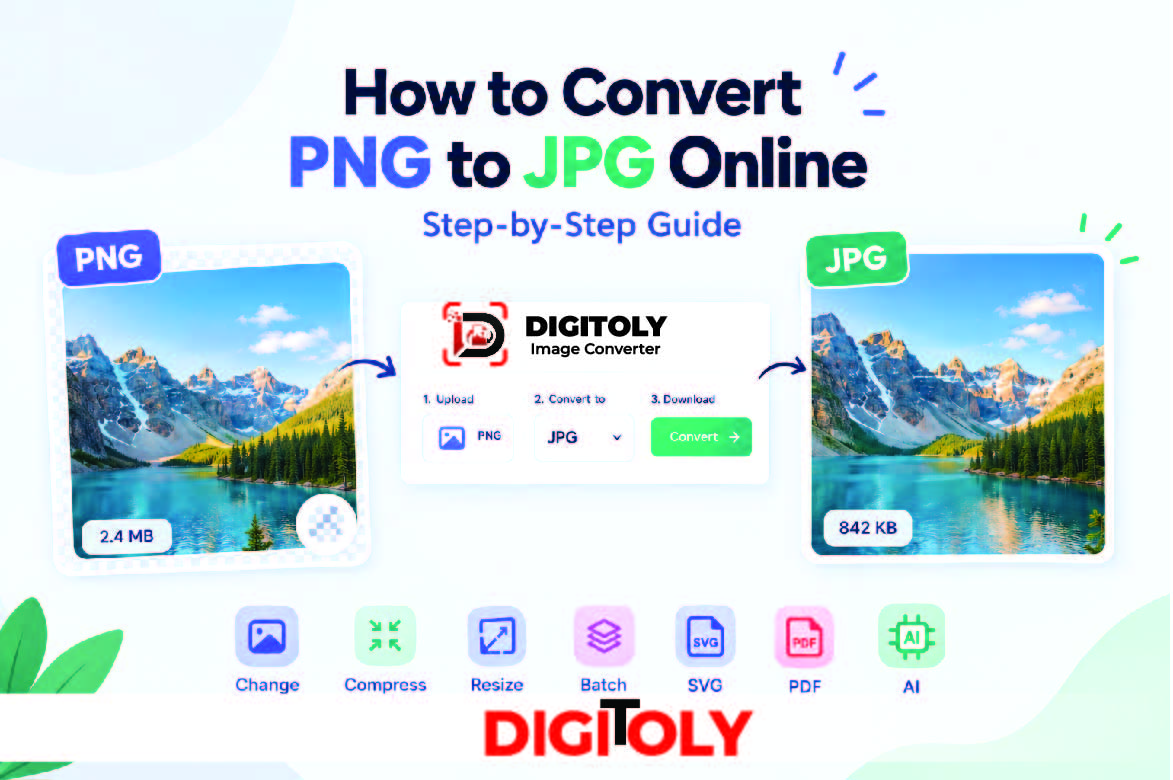
PNG and JPG are two of the most widely used image formats on the internet. Both are useful for sharing, uploading, and displaying images, but they serve different purposes. PNG is often preferred for transparent backgrounds, logos, icons, and graphics, while JPG is commonly used for photographs and images that need a smaller file size.
If you have a PNG image that is too large to upload, incompatible with a website, or unsuitable for a particular application, converting it to JPG may be the solution.
The good news is that you do not need to install complicated software to change your image format. With an online PNG to JPG converter, you can convert an image directly through your browser in just a few simple steps.
In this guide, you will learn how to convert PNG to JPG online, when to use each format, how to maintain good image quality, and what to consider before downloading your converted image.
Ready to convert your image? Try the Digitoly Image Converter to get started.
What Is the Difference Between PNG and JPG?
Before converting an image, it helps to understand how the two formats work.
What is PNG?
PNG stands for Portable Network Graphics. It is a raster image format that supports lossless compression, meaning the original image data can be preserved when the image is saved without additional transformations.
PNG is particularly useful for:
- Logos and brand graphics
- Icons and interface elements
- Screenshots containing text
- Diagrams, charts, and illustrations
- Images that require transparent backgrounds
One of PNG’s most important features is its support for transparency. This allows an image to have a transparent background rather than a solid color.
However, PNG files can be relatively large, particularly when they contain detailed photographs.
What is JPG?
JPG, also written as JPEG, stands for Joint Photographic Experts Group. It is a popular image format that uses lossy compression to reduce file size.
JPG is often suitable for:
- Photographs and portraits
- Travel and landscape images
- Website photographs
- Blog post images
- Product photos
- Images intended for email or online sharing
JPG files are often smaller than equivalent PNG files, although the actual size difference depends on the image content, dimensions, and compression settings.
JPG does not support transparency. Transparent areas in a PNG image must therefore be replaced with a solid background when converted to JPG.
PNG vs. JPG: Quick Comparison
| Feature | PNG | JPG/JPEG |
| Compression | Lossless | Lossy |
| Typical file size | Often larger | Often smaller |
| Transparency | Supported | Not supported |
| Photographs | Supported | Often a practical choice |
| Logos and sharp graphics | Often suitable | May introduce compression artifacts |
| Screenshots with text | Often suitable | Text edges may lose clarity |
| Common extensions | .png | .jpg, .jpeg |
Which format should you choose?
Use PNG when transparency or crisp graphic details matter. Choose JPG when you need a broadly compatible format for photographs and want to reduce file size, provided the quality trade-off is acceptable.
How to Convert PNG to JPG Online: Step-by-Step Guide
You can convert a PNG image to JPG without installing a desktop application. Follow these steps using an online image conversion tool.
Step 1: Open an Online PNG to JPG Converter
Start by opening the Digitoly Image Converter.
An online converter lets you work through a web browser, making it convenient when you need to change an image format on a computer or another supported device.
Before uploading your image, check that you have selected a tool that supports PNG as the input format and JPG or JPEG as the output format.
Step 2: Upload Your PNG Image
Select the upload option in the converter and choose the PNG image you want to convert from your device.
You can use a photograph, screenshot, illustration, or another PNG file, depending on your needs.
Before proceeding, check that you have selected the correct file. If you are converting an image for a website, online form, email attachment, or marketplace listing, it is also useful to check whether the destination has a maximum file-size or dimension requirement.
Tip: Keep a copy of the original PNG. This is especially important if the image has a transparent background or contains graphics that may be affected by JPG compression.
Step 3: Choose JPG or JPEG as the Output Format
If the converter offers an output-format selector, choose JPG or JPEG.
JPG and JPEG refer to the same widely used image format. The difference in the file extension does not mean that one is inherently higher quality than the other.
Some tools automatically identify the output format from the selected conversion option. Follow the options displayed by the converter you are using.
Step 4: Convert the Image
Start the conversion using the tool’s convert option.
The converter processes the PNG image and produces a JPG version. Depending on the tool, image dimensions, file size, and processing method, the conversion may take only a short time.
If the tool offers a quality setting, choose a level appropriate for your intended use. Higher quality generally preserves more visual detail but can produce a larger file. Lower quality can reduce file size but may introduce visible compression artifacts.
If no quality control is available, use the converter’s default settings and inspect the resulting image before using it.
Step 5: Download the Converted JPG
Once the conversion finishes, use the available download option to save the converted image to your device.
Check the downloaded file’s extension. It should be .jpg or .jpeg, depending on how the tool names its output.
If the image will be uploaded to a website or form, confirm that the downloaded file meets the destination’s file-size, dimension, and format requirements.
Step 6: Check the Image Quality
Open the downloaded JPG and compare it with the original PNG.
Pay particular attention to:
- Fine details around edges and text
- Colors and gradients
- Any visible compression artifacts
- The background in areas that were transparent
- The final file size and image dimensions
If the image looks good and meets your requirements, it is ready to use.
Convert your PNG image now: Visit the Digitoly Image Converter and follow the available conversion options.
Why Convert PNG to JPG?
There are several reasons to change a PNG image into JPG.
Reduce Image File Size
One common reason is to make an image smaller for storage, sharing, or uploading.
JPG’s lossy compression can reduce the amount of data needed to represent a photograph. The size reduction depends on the source image and the compression settings, so not every PNG-to-JPG conversion will produce the same result.
If the converted image is still too large, consider reducing its dimensions or using an image compression tool.
Upload Images to Websites and Online Forms
Some websites, application forms, content management systems, and online services specify which image formats they accept.
If a destination accepts JPG but not PNG, converting the image can help meet that requirement. Always check the destination’s current file requirements before converting.
Share Photographs More Easily
JPG is widely supported by browsers, operating systems, image viewers, and many online services. It is therefore a convenient format for sharing photographs through websites, email, and messaging platforms.
However, JPG is not guaranteed to be smaller than every PNG. The result depends on the image itself and how it is encoded.
Prepare Images for Blogs and Websites
Website owners and content creators often need images that balance appearance and file size.
Converting a photographic PNG to JPG may reduce its size and help simplify image delivery. For web performance, however, format conversion is only one part of image optimization. Dimensions, compression, responsive image delivery, and modern formats such as WebP or AVIF may also matter.
Make Image Files Easier to Manage
If you work with a collection of photographs, using a consistent format can simplify some file-management workflows.
For example, you might keep original PNG files for editing while creating JPG copies for sharing or publishing. Retaining the original files gives you more flexibility when you need transparency or lossless image data later.
Does Converting PNG to JPG Reduce Image Quality?
It can. PNG uses lossless compression, while JPG uses lossy compression. During JPG encoding, some image information may be discarded to reduce the file size.
The difference may be difficult to notice in a photograph at a suitable quality setting. It can be more obvious in images containing small text, thin lines, sharp edges, or large areas of a single color.
For example, a photograph may still look natural after conversion, while a screenshot containing small text may show slight blurring or artifacts around letters.
To get a good result:
- Keep the original PNG as a backup.
- Use a higher JPG quality setting when fine details matter, if the converter provides one.
- Avoid repeatedly opening and resaving the same JPG, because repeated lossy encoding can reduce quality further.
- Inspect the output at its intended display size.
- Compare file size and appearance rather than choosing the smallest file automatically.
Remember that converting PNG to JPG cannot add detail that was missing from the original image. The aim is to find a useful balance between visual quality and file size.
What Happens to a Transparent PNG Background?
This is one of the most important things to know before converting an image.
PNG supports transparent pixels, but JPG does not. When a transparent PNG is converted to JPG, the transparent areas must be rendered against a solid background.
Depending on the converter, that background may be white, black, or another selected color.
This matters when converting:
- Logos with transparent backgrounds
- Product images cut out from their original backgrounds
- Icons designed for different website themes
- Stickers and illustrations
- Graphics intended to sit over colored backgrounds
If you need to preserve transparency, keep the image in PNG format or use another suitable transparency-supporting format.
Example: If you convert a logo with a transparent background to JPG, the resulting image may have a white rectangle behind it. That can be unsuitable for placing the logo over a colored website header.
If transparency matters, check the converted image carefully before publishing it.
How to Convert PNG to JPG Without Losing Too Much Quality
Although JPG conversion can introduce compression artifacts, a few practical steps can help you achieve a useful result.
Start With the Original PNG
Use the highest-quality original file available. Avoid converting an already compressed or low-resolution image if you have access to a better source.
Choose Suitable Quality Settings
If your converter provides a JPG quality control, start with a high or medium-high setting and inspect the result. Reduce quality gradually if you need a smaller file.
There is no single quality setting that works best for every image. Photographs, text-heavy screenshots, and illustrations behave differently under compression.
Avoid Unnecessary Resizing
Changing the format does not require changing the image’s dimensions.
If the original PNG is 2000 × 1500 pixels and you only need a format change, retaining those dimensions can help preserve its original pixel detail. Resize only when your intended use calls for different dimensions.
Inspect Text and Edges
Pay attention to small lettering, line drawings, borders, and sharp transitions between colors. These are common places for JPG compression artifacts to appear.
If the image is primarily text or line art, PNG may be the more appropriate format.
Consider WebP for Website Images
JPG is widely compatible, but it is not the only format to consider for web publishing. WebP may provide smaller files at comparable visual quality for some images, depending on the content and settings.
Choose the format based on the destination’s requirements and test the actual output rather than assuming one format is always best.
PNG to JPG Conversion for Different Use Cases
The best image format depends on what you plan to do with the file.
For Website Images
Photographic images may be suitable for JPG, especially when you want to reduce their file size. Check dimensions and visual quality before publishing.
For E-commerce Product Photos
JPG can be useful for product photographs on online stores and marketplaces that accept the format. Confirm the platform’s image specifications, including file type, dimensions, and file-size limits.
For products displayed against a transparent background, retain transparency in a supported format if the platform and design require it.
For Email Attachments
Converting a large photographic PNG to JPG may reduce the attachment size. Review the image after conversion and ensure that the result remains clear enough for the recipient.
For Social Media
JPG may be suitable for photographs, but social platforms often resize or recompress uploaded images themselves. Check the platform’s current recommendations and avoid unnecessary repeated compression.
For Screenshots and Documents
PNG is often preferable for screenshots, diagrams, charts, and images with small text because it preserves sharp edges without lossy compression.
If a website specifically requires JPG, convert the image and inspect the text carefully before submitting it.
Common PNG to JPG Conversion Problems and Solutions
Problem 1: The JPG Image Has a White Background
Why it happens: The original PNG contained transparency, which JPG cannot preserve.
Solution: Keep the image as PNG if transparency is required. Alternatively, choose an appropriate solid background before converting, if your workflow supports it.
Problem 2: The Converted Image Looks Blurry
Why it happens: Lossy compression, resizing, or the original image’s limited resolution may affect sharpness.
Solution: Use a higher quality setting when available, avoid unnecessary resizing, and compare the output with the original file.
Problem 3: The JPG File Is Still Too Large
Why it happens: The image may have large dimensions, complex visual content, or settings that prioritize quality over compression.
Solution: Reduce the dimensions if suitable for your use case, adjust the quality setting if available, or use an image compression tool.
Problem 4: The Website Still Rejects the Image
Why it happens: The website may have a maximum file size, specific dimensions, or additional upload requirements.
Solution: Check the site’s instructions. Confirm the file format, file extension, dimensions, and size. If necessary, resize or compress the image as well as converting it.
Problem 5: The Downloaded File Does Not Open
Why it happens: The download may be incomplete, the file may be corrupted, or the output may not have been generated correctly.
Solution: Try downloading the image again. Confirm that the conversion completed successfully and that the downloaded file is a valid JPG rather than simply a PNG renamed with a .jpg extension.
Can You Convert PNG to JPG on a Phone?
Yes. You can use a browser-based converter on a supported smartphone or tablet without necessarily installing a separate application.
A typical workflow is:
- Open the Digitoly Image Converter in your mobile browser.
- Select the PNG image from the available file picker.
- Choose JPG as the output format, if required.
- Start the conversion.
- Download the resulting image and locate it in your device’s downloads or files area.
The exact steps may vary depending on your browser, operating system, and the converter’s interface.
If you are working with private or confidential images, review the tool’s privacy information to understand how your files are processed and whether they are uploaded to a server.
Is It Safe to Use an Online PNG to JPG Converter?
An online converter can be convenient, but privacy depends on how the particular tool handles uploaded files and processes conversions.
Before converting sensitive images, consider these points:
- Read the tool’s privacy policy.
- Check whether processing happens in your browser or on a remote server.
- Understand how long uploaded files and converted outputs are retained.
- Avoid uploading confidential documents or images to a service unless its data-handling practices meet your needs.
- Use a trusted website and keep your browser up to date.
Do not assume that every online converter processes images locally just because it runs in a browser. If privacy is important, verify the specific processing method described by the service.
Frequently Asked Questions
- How do I convert PNG to JPG online?
Open an online image converter, upload your PNG file, choose JPG as the output format if needed, start the conversion, and download the result. Check the converted image before using it.
- Can I convert PNG to JPG for free?
Some online image converters offer free PNG-to-JPG conversion. Check the current tool’s limits, supported features, and pricing before starting. You can try the Digitoly Image Converter to see the options available.
- Is JPG the same as JPEG?
Yes. JPG and JPEG refer to the same image format. Both file extensions are commonly used for JPEG images.
- Will converting PNG to JPG reduce file size?
It often does for photographic images, but the result varies. Image dimensions, content, and compression settings all affect the final file size. Compare the original and converted files to confirm the difference.
- Does PNG to JPG conversion reduce image quality?
It can. PNG uses lossless compression, whereas JPG uses lossy compression. The amount of visible change depends on the image and the encoding settings.
- Can JPG preserve a transparent background?
No. JPG does not support transparency. Transparent areas in a PNG must be replaced with a solid background during conversion.
- Can I convert multiple PNG images to JPG at once?
That depends on whether your chosen converter supports batch conversion. Check the available features before uploading multiple files. If batch conversion is available, follow the tool’s instructions for selecting and downloading the results.
- Do I need to install software to convert PNG to JPG?
Not necessarily. A browser-based image converter can perform the task without requiring a separate desktop application, depending on the tool and your device.
- Can I convert PNG to JPG without changing the image dimensions?
Yes, provided the converter preserves the original dimensions or allows you to keep them unchanged. Format conversion and resizing are separate operations.
- Which is better for photographs: PNG or JPG?
JPG is often a practical choice for photographs because lossy compression can reduce file size substantially. PNG may be preferable when preserving exact pixel data is important, although it can produce larger files for photographic content.
- Can I change a PNG file to JPG just by renaming it?
No. Renaming image.png to image.jpg does not convert the image data. You need an actual image conversion process to create a valid JPG file.
- What should I use if I need a transparent image?
Keep the image in PNG format or choose another format that supports transparency and meets your destination’s requirements. JPG is not suitable when transparency must be preserved.
Conclusion
Converting PNG to JPG online is a straightforward way to prepare images for sharing, uploading, and publishing. JPG is often useful for photographs and situations where a smaller file is desirable, while PNG remains a strong choice for transparent images, screenshots, and graphics that benefit from lossless compression.
For the best results, start with the original PNG, choose suitable conversion settings, preserve the original file, and inspect the output for changes in quality or background appearance. If you need a smaller image, remember that resizing and compression are additional options rather than requirements of format conversion.
Ready to convert your image?
Use the Digitoly Image Converter to explore the available image conversion options and prepare your image for its next use.

